Gaming Setup Performance Optimization
*We may earn a commission for purchases made using our links. Please see our disclosure to learn more.
Gaming Setup Performance Optimization: Essential Tweaks to Maximize FPS and Reduce Lag
Your gaming experience depends heavily on how well your setup performs. A slow computer, poor display quality, or overheating system can turn even the best games into frustrating experiences. The good news is that you can improve your gaming performance through hardware choices, software settings, and proper maintenance.
Gaming setup performance optimization involves adjusting your computer’s hardware, software, and settings to get the smoothest and fastest gaming experience possible. This includes everything from picking the right parts to changing graphics settings and keeping your system cool. Many of these improvements don’t require spending money on new equipment.
I’ll walk you through the key areas that affect gaming performance. You’ll learn about hardware selection, display optimization, system configuration, and thermal management. I’ll also cover network setup, power settings, and workspace comfort to help you build and maintain a setup that performs at its best.
Defining Gaming Setup Performance Optimization
Gaming setup performance optimization means making deliberate changes to your hardware and software to get better frame rates, lower input delay, and smoother gameplay. I focus on measuring current performance, finding what slows down my system, and applying specific fixes to reach my gaming goals.
Key Metrics and Benchmarking
Frame rate (FPS) is the most important metric I track. It measures how many images my system displays per second. Most gamers aim for 60 FPS minimum, while competitive players target 144 FPS or higher.
Frame time shows how long my system takes to render each frame. Consistent frame times matter more than average FPS because spikes cause stuttering. I look for frame times under 16.6ms for 60 FPS gaming.
Input lag measures the delay between my actions and what happens on screen. Lower input lag makes games feel more responsive. I can test this with dedicated tools or by feel during gameplay.
I use benchmarking tools to measure these metrics. Programs like MSI Afterburner, FRAPS, and built-in game benchmarks give me hard numbers. I run tests multiple times and compare results before and after changes to see what actually works.
Common Bottlenecks in Gaming Performance
A CPU bottleneck happens when my processor can’t keep up with my graphics card. Games stutter even though my GPU usage stays low. This affects strategy games and titles with many on-screen objects.
A GPU bottleneck means my graphics card limits performance. My GPU usage hits 95-100% while my CPU sits idle. This is the most common bottleneck in modern gaming.
RAM limitations slow down performance when I don’t have enough memory or it runs at slow speeds. Games start stuttering when they run out of RAM and use my hard drive instead.
Storage speed affects load times and texture streaming. Old hard drives cause long loading screens and texture pop-in. An SSD eliminates most of these issues.
Thermal throttling reduces performance when components get too hot. My CPU or GPU automatically slows down to prevent damage.
Goals of Optimization
My primary goal is achieving smooth, consistent frame rates at my target number. I’d rather have steady 60 FPS than frame rates bouncing between 45 and 90 FPS.
I want to reduce input lag to make my games feel responsive. Every millisecond counts in competitive gaming. Lower input lag helps me react faster and play better.
Maximizing visual quality within my performance targets matters too. I adjust settings to find the sweet spot between graphics and frame rate. Some settings barely affect visuals but drain performance.
I aim for stable temperatures to prevent throttling and extend hardware life. Keeping components cool maintains peak performance during long gaming sessions.
Selecting High-Performance Hardware
The core components of your gaming PC directly impact frame rates and load times. I’ll focus on the CPU, GPU, memory, storage, motherboard, and power supply choices that matter most for gaming performance.
Choosing the Right CPU and GPU
The GPU handles most gaming tasks and determines your frame rates at different resolutions. I recommend starting with your monitor’s resolution and refresh rate to pick the right GPU tier. For 1080p gaming at 60-144 fps, a mid-range GPU works well. For 1440p or 4K gaming, you need higher-tier options.
Your CPU matters less than the GPU for most games, but it still affects performance. Games that simulate many characters or complex physics need stronger CPUs. I suggest pairing your GPU with a CPU that won’t bottleneck it.
Look for these specs when shopping:
- For 1080p: 6-core CPU, mid-range current or last-gen GPU
- For 1440p: 8-core CPU, high-end current-gen GPU
- For 4K: 8+ core CPU, top-tier current-gen GPU
Check benchmarks for the specific games you play. Different games stress hardware differently.
Memory and Storage Considerations
RAM speed and capacity affect how smoothly games run and load. I recommend 16GB as the minimum for modern gaming, with 32GB providing headroom for demanding titles and multitasking.
DDR4 RAM at 3200-3600 MHz offers good value. DDR5 provides faster speeds but costs more. The performance difference in games is usually small.
Storage type changes load times significantly. I use an NVMe SSD for my operating system and main games. These drives load games much faster than SATA SSDs or hard drives. A 1TB NVMe SSD gives enough space for your OS and several large games. You can add a larger hard drive or SATA SSD for extra storage at lower cost.
Motherboard and Power Supply Recommendations
Your motherboard must match your CPU socket type and support your RAM speed. I pick boards with enough USB ports, PCIe slots, and M.2 slots for my needs. Quality VRMs matter if you plan to overclock.
The power supply needs enough wattage for your components with room to spare. I calculate total system power draw and add 20-30% headroom. A 650W unit works for most mid-range builds. High-end systems with powerful GPUs need 750W or more.
Look for 80 Plus Bronze certification at minimum. Gold or Platinum ratings waste less power as heat. Modular cables make building cleaner and improve airflow.
Optimizing Display and Peripherals
Your display and peripherals directly affect how well you can react and perform in games. A monitor with the wrong settings can add input lag, while low-quality peripherals can slow down your response times.
Monitor Selection and Settings
I recommend getting a monitor with at least a 144Hz refresh rate for competitive gaming. Higher refresh rates like 240Hz offer smoother motion, but the difference becomes less noticeable beyond 144Hz for most players.
Response time matters too. I look for monitors with 1ms response times to reduce motion blur and ghosting. IPS panels offer better colors, while TN panels typically have faster response times.
Key monitor settings to adjust:
- Enable your monitor’s native refresh rate in Windows display settings
- Turn off any motion smoothing or post-processing features
- Reduce brightness to around 250-300 nits for eye comfort
- Set your resolution to match your GPU’s capabilities
I make sure to use DisplayPort cables instead of HDMI when possible. DisplayPort supports higher refresh rates and bandwidth for gaming monitors.
High-Performance Keyboards and Mice
Gaming mice with high DPI sensors give me more precision for aiming. I prefer mice with at least 16,000 DPI, but I typically use settings between 800-1600 DPI for actual gameplay.
Polling rate should be set to 1000Hz on your mouse. This means the mouse reports its position 1000 times per second, reducing input lag.
Mechanical keyboards provide faster response times than membrane keyboards. I use keyboards with low actuation force (45-50g) for quicker key presses. Linear switches work best for gaming because they don’t have a tactile bump that slows down key presses.
Wired peripherals eliminate wireless latency. Even modern wireless mice have 1-2ms of delay compared to wired options.
Audio Equipment Enhancements
Good audio helps me hear enemy footsteps and positioning cues in games. I use headphones with clear stereo imaging rather than relying on virtual surround sound, which often sounds muddy.
Headphones with 40mm or larger drivers provide better bass response and directional audio. I keep impedance under 80 ohms so they work well without a dedicated amplifier.
A dedicated microphone improves voice chat quality for team coordination. USB microphones like the Blue Yeti or Samson Q2U offer clear audio without expensive audio interfaces.
I disable all audio enhancements in Windows sound settings. These processing features add latency and don’t improve gaming performance.
System Software Configuration
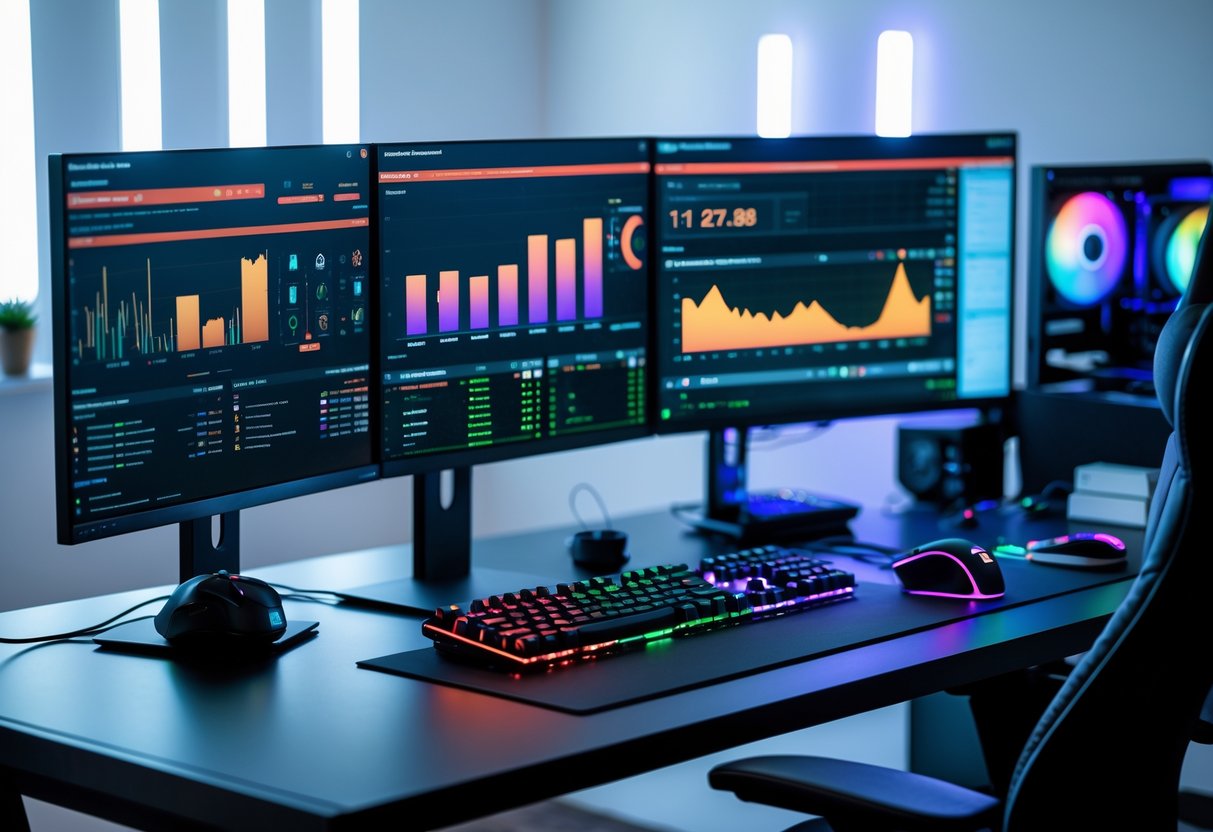
Windows 11 offers built-in features that directly impact gaming performance, from power management to GPU scheduling. Keeping drivers current and controlling background processes prevents unnecessary resource drain during gameplay.
Operating System Tweaks
I enable Game Mode in Windows 11 by opening Settings > Gaming > Game Mode and toggling it on. This feature prioritizes CPU and GPU resources for games while limiting background activities.
Next, I activate hardware-accelerated GPU scheduling through Settings > System > Display > Graphics settings. This setting reduces latency by letting the GPU manage its own memory instead of relying on the CPU.
I always set my power plan to High Performance. I access this through Control Panel > Power Options or by right-clicking the battery icon in the system tray. The High Performance plan prevents the CPU from downclocking during intense gaming sessions.
I also disable visual effects that waste resources. In the Start menu search, I type “performance” and select “Adjust the appearance and performance of Windows.” I choose “Adjust for best performance” or manually disable animations and shadows.
Driver Updates and Management
I keep my graphics drivers updated through the manufacturer’s official software. NVIDIA users should use GeForce Experience, while AMD users need Radeon Software.
I check for updates weekly because new drivers often include performance improvements for recent games. However, I avoid beta drivers unless I need specific fixes since they can cause instability.
For other hardware, I use Device Manager to verify driver versions. I update chipset drivers from the motherboard manufacturer’s website and ensure my network adapter drivers are current to prevent connectivity issues during online gaming.
I never use third-party driver update tools. These programs often install incorrect or outdated drivers that cause more problems than they solve.
Essential Background Processes
I use Task Manager (Ctrl+Shift+Esc) to identify programs consuming CPU, RAM, or disk resources. I sort by each column to find the biggest resource users.
I disable startup programs I don’t need. In Task Manager’s Startup tab, I right-click unnecessary programs and select “Disable.” Common culprits include chat applications, cloud sync services, and update schedulers.
Windows Update can interrupt gaming sessions, so I schedule updates for specific times. I go to Settings > Windows Update > Advanced options > Active hours and set times when I typically game.
I keep only essential programs running: antivirus software, audio drivers, and peripheral software like mouse or keyboard utilities. Everything else gets closed before I launch a game.
In-Game Graphics and Settings Optimization
Balancing visual quality with smooth gameplay requires adjusting specific graphics options based on your hardware. I recommend starting with preset configurations and then fine-tuning individual settings to achieve your target frame rate while maintaining acceptable image quality.
Graphics Presets and Customization
Most games offer preset options like Low, Medium, High, and Ultra. I suggest using these as starting points rather than final solutions.
Start by selecting a preset one level below what you think your system can handle. Run the game’s benchmark mode if available, or play for 10-15 minutes while monitoring your frame rate. If you consistently get 60 FPS or higher, you can move up to the next preset.
Key settings to customize after choosing a preset:
- Shadows – One of the biggest performance impacts. I reduce shadow quality or distance first when I need extra frames.
- Anti-aliasing – TAA or FXAA offer better performance than MSAA. Lowering from 4x to 2x can boost FPS by 10-20%.
- Texture quality – Only affects performance if your GPU lacks VRAM. Keep it high unless you have 4GB or less.
- View distance – Reducing this helps in open-world games without affecting close-range visibility.
Resolution and Frame Rate Tuning
Your display resolution directly controls how many pixels your GPU must render each frame. Running at 1080p instead of 1440p can increase frame rates by 40-50%.
I recommend matching your game resolution to your monitor’s native resolution for the sharpest image. If you need more performance, try these options in order: enable dynamic resolution scaling set to 90-95%, use your GPU’s upscaling technology like DLSS or FSR, or reduce resolution to the next standard size down.
For frame rate targets, I aim for at least 60 FPS for single-player games and 120+ FPS for competitive multiplayer. Enable your game’s FPS counter to track performance during gameplay.
Frame rate priority settings:
- Turn off V-Sync to reduce input lag
- Set frame rate limit to your monitor’s refresh rate plus 10-20%
- Use G-Sync or FreeSync to eliminate screen tearing
Input Lag Reduction Techniques
Input lag is the delay between pressing a button and seeing the action on screen. I measure this in milliseconds, with lower being better.
Set your game to fullscreen mode rather than borderless windowed. Fullscreen typically reduces input lag by 5-10ms. Disable V-Sync, as it can add 16-33ms of delay depending on your frame rate.
Lower your graphics settings to maintain frame rates well above your monitor’s refresh rate. Higher frame rates mean fresher frames reach your display faster. If I’m getting 120 FPS on a 60Hz monitor, each frame is newer than if I was only hitting 60 FPS.
Enable Reflex in Nvidia games or Anti-Lag in AMD games. These technologies optimize the rendering pipeline to minimize the time between input and display. I’ve measured reductions of 10-30ms with these features active.
Thermal Management and Cooling Solutions
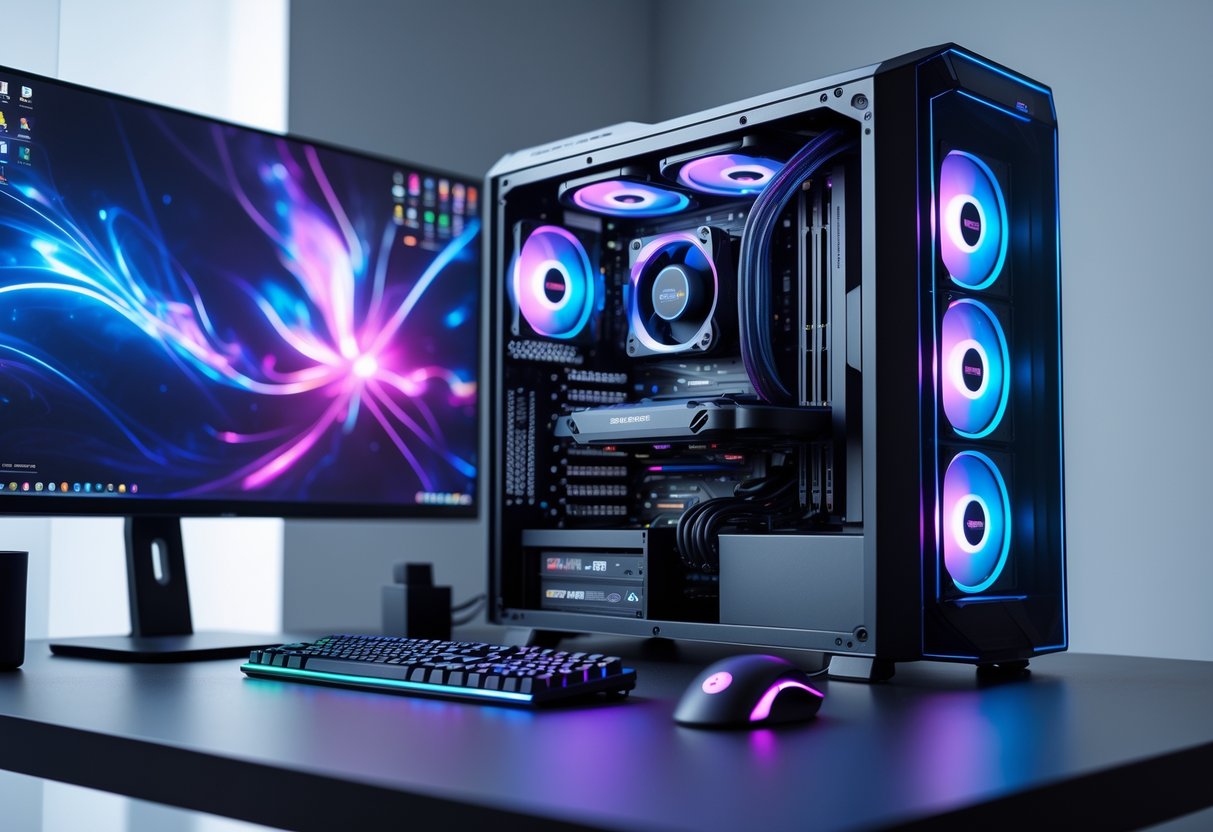
Keeping your gaming PC at safe temperatures requires the right cooling hardware, proper airflow design, and consistent temperature monitoring. These three elements work together to prevent thermal throttling and extend your hardware’s lifespan.
Advanced Cooling Systems
I recommend starting with your CPU cooler choice, as it makes the biggest difference in thermal performance. Air coolers with tower designs and 120mm or 140mm fans handle most gaming needs. They cost between $30 and $100 for quality models.
Liquid cooling offers better heat dissipation for high-end builds. All-in-one (AIO) liquid coolers come pre-filled and mount easily. I suggest 240mm or 360mm radiator sizes for gaming PCs. Custom loops provide maximum cooling but require maintenance every 6-12 months.
Your GPU cooling matters just as much as CPU cooling. Aftermarket GPU coolers drop temperatures by 10-20°C compared to reference designs. Cards with three fans and larger heatsinks perform better than dual-fan models.
Thermal paste quality affects temperatures by 3-5°C. Replace stock thermal paste with high-quality compounds like Arctic MX-4 or Thermal Grizzly Kryonaut. Reapply paste every 2-3 years as it dries out.
Optimal Airflow Setup
I set up airflow using a front-to-back, bottom-to-top pattern. Mount intake fans at the front and bottom of your case. Install exhaust fans at the rear and top positions.
The ideal fan setup uses slightly positive pressure. I run three intake fans and two exhaust fans in most builds. This prevents dust buildup while maintaining steady airflow across components.
Fan placement matters more than fan quantity. Position intake fans directly in front of your GPU and CPU cooler. Clear any cable clutter blocking airflow paths. Leave 2-3 inches of space between your case and walls.
Case choice impacts cooling effectiveness. I prefer cases with mesh front panels over solid panels. They allow 20-40% more airflow to reach internal components.
Monitoring Temperatures in Real-Time
I use software tools like HWMonitor, Core Temp, and MSI Afterburner to track temperatures. These programs display real-time data for CPU, GPU, and motherboard sensors. Install at least one monitoring tool before gaming.
Safe gaming temperatures stay below these limits:
- CPU: 70-80°C under load
- GPU: 75-85°C under load
- Motherboard: Below 60°C
Set up temperature alerts at 85°C for your CPU and 90°C for your GPU. This warns you before thermal throttling occurs. Check temperatures after 30 minutes of gaming to see your system’s peak heat levels.
Monitor temperatures weekly during heavy use. Sudden temperature increases of 10°C or more signal dust buildup or failing cooling components.
Network Configuration for Low Latency
A properly configured network can reduce your ping by 20-50ms and eliminate frustrating lag spikes during gameplay. The three most critical factors are your connection type, router settings, and how you manage network traffic.
Wired vs. Wireless Connections
I always recommend using an Ethernet cable for gaming instead of Wi-Fi. A wired connection provides consistent ping times between 1-5ms on your local network, while Wi-Fi can fluctuate between 5-30ms or higher.
Wi-Fi suffers from interference, signal drops, and packet loss that cause rubber-banding and delayed inputs. Even the best Wi-Fi 6 router can’t match the stability of a basic Ethernet cable.
If you must use wireless, I suggest staying within 15 feet of your router and using the 5GHz band instead of 2.4GHz. The 5GHz frequency has less interference from other devices but shorter range. Position your gaming device with a clear line of sight to the router and avoid placing it near microwaves, cordless phones, or thick walls.
Router Setup and QoS
Quality of Service (QoS) settings let you prioritize gaming traffic over other activities on your network. I configure QoS through my router’s admin panel to give my gaming PC the highest priority.
Most gaming routers include preset QoS profiles that automatically detect gaming traffic. I enable this feature and assign my gaming device’s MAC address to the highest priority tier. This ensures my game packets get sent first, even when someone else streams video or downloads files.
I also change my DNS servers to Google (8.8.8.8) or Cloudflare (1.1.1.1) instead of using my ISP’s default servers. This simple change can reduce lookup times by 10-30ms.
Reducing Network Lag
I maintain a ping under 50ms by limiting the number of active devices during gaming sessions. Every device streaming, downloading, or uploading uses bandwidth and adds latency to my connection.
I close background applications that use the internet, including game launchers, streaming apps, and cloud sync services. Programs like Steam, Discord, and web browsers can consume bandwidth even when minimized.
For households with multiple users, I schedule gaming sessions during off-peak hours when fewer people are online. I also ask family members to pause large downloads or 4K streaming while I play competitive games where every millisecond matters.
Power Management and System Stability
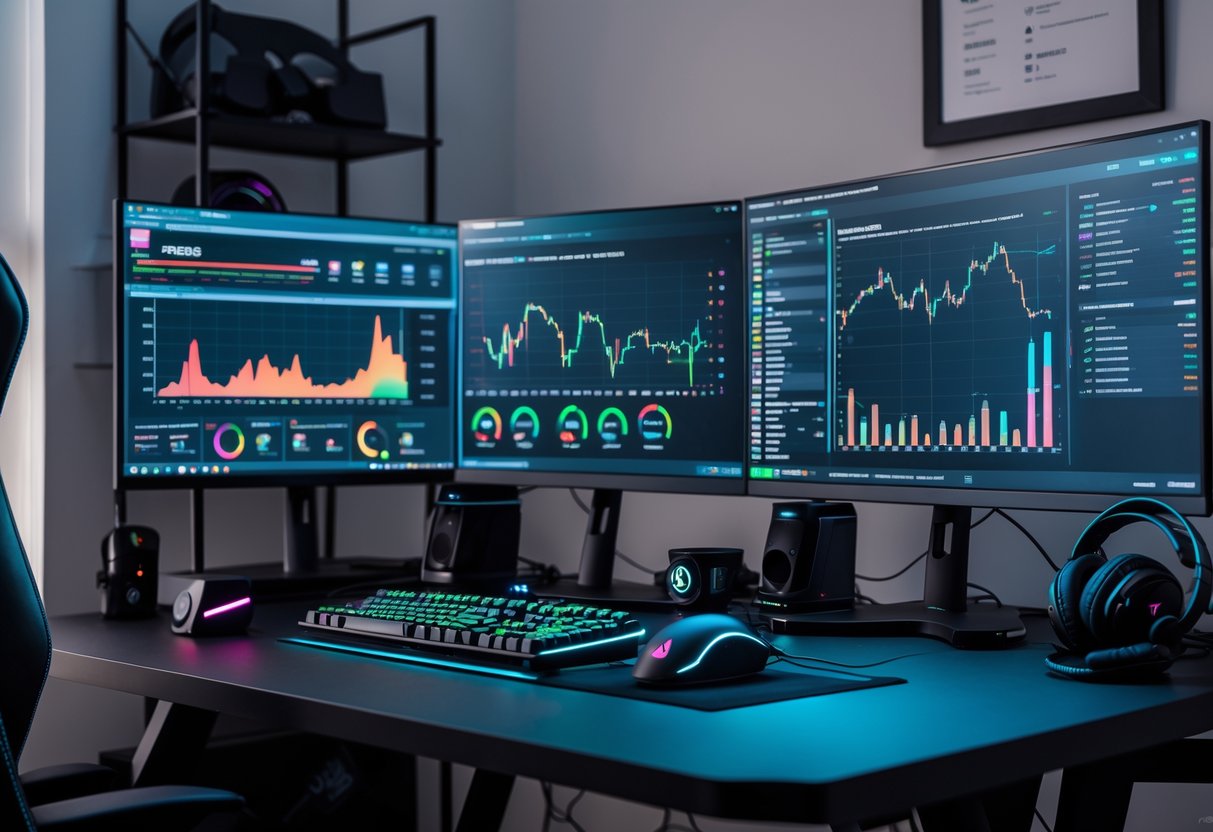
Your PC’s power settings directly affect frame rates, component lifespan, and system crashes. Getting these right means fewer stutters and better protection for your hardware investment.
Overclocking Best Practices
I always start with stress testing before I commit to any overclock. Prime95 and FurMark push your CPU and GPU to their limits so you can spot instability before it ruins a ranked match.
Start with small increments. I increase clock speeds by 50-100 MHz at a time, then run benchmarks for at least 30 minutes. If temperatures stay below 85°C and the system doesn’t crash, I move to the next step.
Key settings to monitor:
- Core voltage (keep under 1.35V for most CPUs)
- Memory timings (XMP profiles work for most users)
- Load-line calibration (prevents voltage droop under load)
Save your stable settings as a BIOS profile. I keep two profiles: one for daily gaming and one at stock speeds for when I need guaranteed stability. Never push voltage beyond manufacturer specs unless you’re comfortable voiding warranties.
Power Supply Unit Calibration
I set Windows to High Performance mode through Control Panel > Power Options. This prevents the CPU from downclocking during intense moments.
Your PSU needs adequate wattage for your components plus 20% overhead. A 3080 Ti system draws around 450W under load, so I recommend at least a 750W unit. Anything less causes voltage dips that manifest as random crashes.
Check PCI Express Link State Power Management in advanced power settings. I turn this off because it causes stuttering when the GPU ramps up from idle. The same goes for USB selective suspend, which can disconnect peripherals mid-game.
Critical power settings to disable:
- Turn off hard disk after X minutes
- PCI Express Link State Power Management
- Processor power management minimum state (set to 100%)
Safeguarding Against Power Surges
I use a surge protector rated for at least 2000 joules. Standard power strips don’t protect against voltage spikes that fry motherboards and GPUs.
Uninterruptible Power Supplies (UPS) give me 10-15 minutes of battery backup during outages. This prevents data corruption and gives me time to save and shut down properly. I look for pure sine wave models because cheaper ones with simulated sine waves can cause coil whine in PSUs.
Ground your outlets properly. I test mine yearly with a three-prong tester from the hardware store. Ungrounded outlets create static buildup that damages components over time.
Workspace Ergonomics and Comfort
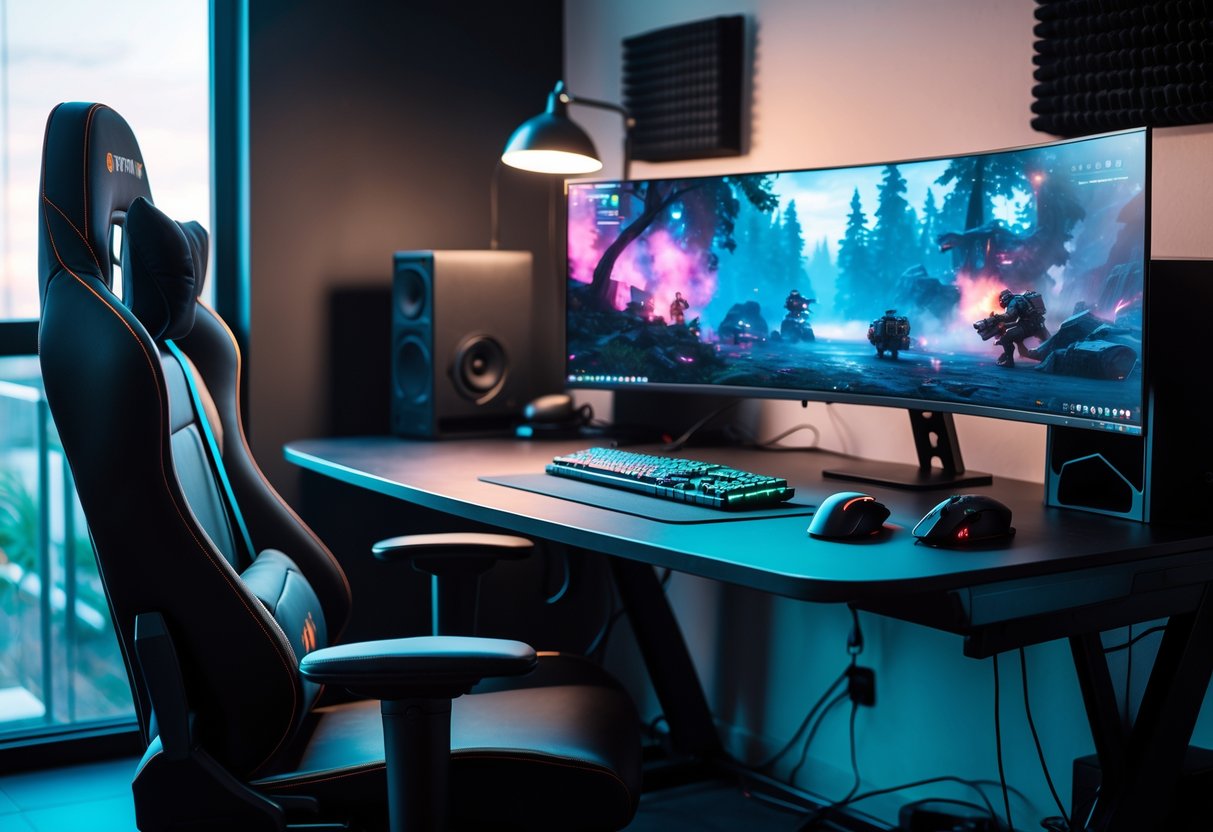
Your body position and workspace layout directly impact both your gaming performance and physical health during extended sessions. The right desk height, proper lighting, and organized cables create a foundation that reduces strain and keeps you focused.
Desk and Chair Selection
I recommend a desk height that allows your elbows to rest at 90 degrees when your hands are on your keyboard and mouse. Standard desks sit at 28-30 inches, but adjustable standing desks give you flexibility to switch positions during long gaming sessions.
Your chair needs lumbar support that matches your lower back’s natural curve. Look for chairs with adjustable armrests that let your shoulders relax while keeping your arms supported. The seat depth should leave 2-3 inches between the edge and the back of your knees.
Set your chair height so your feet rest flat on the floor. If your desk is too high and lowering your chair lifts your feet off the ground, use a footrest. Your thighs should be parallel to the floor or angled slightly downward.
I position my monitor arm‘s length away, with the top of the screen at or slightly below eye level. This prevents neck strain from looking up or down for hours.
Lighting and Ambient Setup
I avoid placing my monitor directly in front of or behind windows. Glare and strong backlighting cause eye strain and force me to squint during gameplay. Position your desk perpendicular to windows when possible.
Bias lighting behind your monitor reduces eye fatigue. I use LED strips that provide soft, indirect light to decrease the contrast between my bright screen and dark room. The ideal setup includes ambient lighting that’s about half as bright as your monitor.
Avoid overhead lights that create reflections on your screen. I prefer desk lamps with adjustable arms that let me direct light onto my keyboard or notes without hitting my display.
Room temperature affects performance too. I keep my gaming space between 68-72°F to maintain focus without discomfort.
Cable Management Strategies
I use cable sleeves to bundle power cables, USB connections, and audio wires together. This prevents tangled cables from pulling on my mouse or keyboard during intense moments.
Mount a power strip under your desk with adhesive strips or mounting brackets. I route all cables through the strip first, then guide them to their destinations. This creates one central point for cable organization.
Cable clips attach to desk edges and keep wires in place. I space them every 12-18 inches along cable runs to prevent sagging. Velcro ties work better than zip ties because I can adjust them when adding new peripherals.
Leave some slack in your mouse and keyboard cables. Tension-free cables improve mouse movement and prevent accidental disconnections during gameplay.
Ongoing Maintenance and Upgrades
Keeping your gaming setup at peak performance requires regular cleaning every 3-6 months, smart decisions about when to replace aging components, and staying informed about new technology that offers real improvements.
Routine Cleaning Procedures
I clean my gaming PC every 3-6 months to prevent dust buildup that causes overheating and performance drops. Dust acts like a blanket on your components, trapping heat and forcing fans to work harder.
Here’s my cleaning schedule:
Monthly tasks:
- Wipe down external surfaces
- Check fan noise levels
- Clear desk area of clutter
Every 3-6 months:
- Power off and unplug completely
- Use compressed air on fans and vents
- Remove dust filters and wash them
- Clean GPU and CPU cooler fins
- Check cable connections
I always hold fans in place when using compressed air to prevent them from spinning too fast and damaging bearings. I never use a vacuum inside my PC because it creates static electricity that can harm components.
Component Life Cycle Management
I track when I bought each component because different parts have different lifespans. SSDs typically last 5-10 years, while mechanical hard drives need replacement every 3-5 years. My power supply usually lasts 7-10 years if I buy a quality unit.
Graphics cards and CPUs last longer than their useful life for gaming. I upgrade my GPU every 3-4 years when newer games start struggling at my preferred settings. RAM rarely fails but becomes outdated as games require more memory.
I watch for warning signs like strange noises, random crashes, or slower performance. These tell me when a component needs replacement before it fails completely. I replace thermal paste on my CPU every 2-3 years to maintain good cooling performance.
Staying Updated with the Latest Technology
I follow tech news to know when upgrades make sense. Not every new release is worth buying. I wait for reviews that show real performance gains in actual games, not just benchmarks.
I focus on upgrades that remove bottlenecks in my system. If my GPU usage sits at 100% while gaming but my CPU stays at 50%, I know the graphics card needs upgrading first. Monitoring tools help me identify what’s holding back my performance.
I set a budget and prioritize upgrades based on impact. A new SSD or more RAM often provides better value than a slightly faster CPU. I also watch for sales during major shopping events to get better prices on components I’ve been planning to buy.
Frequently Asked Questions
Optimizing your gaming setup involves adjusting Windows settings like Game Mode and visual effects, managing background programs, tweaking graphics settings for your hardware, and considering both free software solutions and paid services based on your needs.
What are the best ways to improve FPS in my gaming setup?
I recommend starting with your graphics settings in each game. Lowering shadow quality, reducing anti-aliasing, and turning down texture quality can boost FPS without making games look bad.
Updating your graphics drivers gives you better performance in new games. I also suggest closing background programs that use your CPU and RAM while gaming. Setting your power plan to High Performance in Windows helps your PC use its full power.
If you have 8GB of RAM or less, upgrading to 16GB makes a big difference. Keeping your PC clean from dust helps it stay cool, which prevents thermal throttling that lowers FPS.
Which specific Windows settings should be adjusted for optimal gaming performance?
I always enable Game Mode in Windows settings because it prioritizes system resources for your game. You can find it under Settings > Gaming > Game Mode.
I turn off visual effects by going to System Properties > Advanced > Performance Settings and selecting “Adjust for best performance.” This frees up resources your PC would use on animations. Disabling unnecessary startup programs through Task Manager stops apps from running in the background when you don’t need them.
I also disable Windows notifications during gaming sessions. Setting your graphics card as the preferred GPU in Graphics Settings ensures games use your dedicated card instead of integrated graphics.
What are some effective strategies to reduce lag and latency in games?
I use an ethernet cable instead of Wi-Fi because wired connections are more stable and faster. If you must use Wi-Fi, I recommend staying close to your router and using the 5GHz band.
Closing bandwidth-heavy programs like streaming services and downloads before gaming helps a lot. I check my ping in games and look for servers closest to my location. Updating network drivers and router firmware can fix connection issues.
I disable VPNs while gaming unless I specifically need one. Some routers have Quality of Service settings that let you prioritize gaming traffic over other devices on your network.
How do I ensure that background processes do not interfere with gaming performance?
I open Task Manager and look at the Processes tab to see what’s using my CPU and RAM. I close programs I don’t need, especially browsers with many tabs open.
Disabling startup programs prevents apps from launching automatically. I go to Task Manager > Startup and disable everything except essential programs like my antivirus. Windows Update can slow down your system, so I schedule updates for times when I’m not gaming.
I also check for malware that might be using resources without my knowledge. Some antivirus programs have gaming modes that reduce their impact while you play.
Is it worth investing in professional PC optimization services for gaming?
Most optimization tasks don’t require professional services because you can do them yourself for free. Basic tweaks like adjusting settings, updating drivers, and managing startup programs are straightforward.
I only consider professional services if you have persistent problems you can’t fix or if you’re not comfortable making changes to your system. Many paid optimization software programs don’t do much more than free tools already available in Windows.
If you need hardware upgrades, paying someone to install them might be worth it if you’re not experienced with PC building. Professional cleaning services make sense if your PC has severe dust buildup and you don’t want to open it yourself.
What advanced tweaks can be applied to enhance gaming graphics quality without compromising speed?
I adjust individual graphics settings instead of using presets. Texture quality can usually stay high without hurting FPS much. I lower shadow quality first because shadows use a lot of resources but don’t affect visuals as much.
Reducing anti-aliasing from 8x to 2x or 4x improves performance while still smoothing edges. I turn off motion blur and depth of field because they use resources and many gamers don’t like these effects anyway. Ambient occlusion can be set to SSAO instead of HBAO+ for better performance with similar quality.
Using your graphics card control panel to optimize settings per game gives you more control. I set resolution scaling to 90-95% if I need more FPS, since the visual difference is small. Enabling features like NVIDIA DLSS or AMD FSR when available gives you better graphics and higher FPS at the same time.