How To Reduce Input Lag On Console
*We may earn a commission for purchases made using our links. Please see our disclosure to learn more.
How to Reduce Input Lag on Console: The Ultimate Guide
Input lag what is it and how to reduce input lag on console? Input lag can ruin your gaming experience, turning precise movements into frustrating delays between your controller and what happens on screen. I’ve spent years testing different setups and configurations to find what actually works, and I can tell you that most console players deal with more input lag than they need to.
You can reduce input lag on your console by enabling Game Mode on your TV, using a wired controller connection, connecting your console via Ethernet instead of Wi-Fi, and adjusting your display and console settings for performance over visual quality. These changes can cut your input lag by 30-50 milliseconds or more, which makes a noticeable difference in competitive games.
I’ll walk you through measuring your current input lag, optimizing your hardware setup, and adjusting both system and game settings to get the most responsive gameplay possible. You’ll learn which changes make the biggest impact and how to test whether your adjustments are actually working.
Understanding Input Lag and Its Impact
Input lag creates a delay between your actions and what happens on screen, which can hurt your gaming experience in ways you might not immediately notice. The amount of latency in your setup affects everything from casual play to competitive gaming.
What Is Input Lag?
Input lag is the time it takes between pressing a button on your controller and seeing that action appear on your screen. When I press the jump button, input lag determines how long before my character actually jumps in the game.
This delay gets measured in milliseconds. A display with 10ms of input lag means there’s a 10-millisecond gap between my input and the visual response. Some TVs can have input lag ranging from 20-100ms, while gaming monitors typically stay between 1-10ms.
Input lag differs from other types of lag. Network lag affects online games through internet connection issues. Input delay specifically refers to the hardware and display processing time before I see results from my controller.
How Input Lag Affects Gaming Performance
High input lag makes games feel sluggish and unresponsive. In fast-paced titles like fighting games or first-person shooters, even 30-40ms can mean the difference between landing a hit or missing completely.
Competitive gaming demands responsive gameplay. When I’m trying to block an attack or land a precise combo, controller latency breaks my timing. My inputs need to register instantly for me to react to what’s happening on screen.
The impact varies by game type:
- Fighting games: Require frame-perfect inputs where 16ms matters
- Shooters: Need quick aim adjustments and reactions
- Racing games: Demand precise steering timing
- Casual games: Can tolerate higher latency without major issues
Main Causes of Input Lag on Consoles
Multiple factors contribute to the total input delay I experience. My TV or monitor creates the biggest source of lag through image processing features.
Display processing adds the most latency. TVs use post-processing for motion smoothing, upscaling, and color enhancement. These features can add 50-100ms of delay. Gaming monitors skip most processing to maintain low latency.
Controller connection affects response time. Wireless controllers introduce small amounts of lag compared to wired connections. The console must receive and process the wireless signal before sending it to the display.
Console performance plays a role when the system struggles to maintain frame rates. If my console drops below 60 frames per second, I notice additional input delay because it takes longer to render each frame.
Assessing and Measuring Input Lag
Before you can fix input lag, you need to know how much delay your setup actually has. Testing tools and measurement methods help identify whether your controller, display, or system is causing the slowdown.
Input Lag Testing Tools
I recommend starting with online reaction time tests that give you a baseline measurement. These free websites measure how quickly you respond to visual cues, though they won’t isolate specific hardware issues.
For more precise results, I use high-speed cameras to record both my controller button presses and the screen simultaneously. This method calculates the exact delay between input and on-screen response. Some gamers prefer dedicated testing equipment like the Leo Bodnar lag tester, which provides millisecond-accurate measurements of display lag.
Common Testing Methods:
- Online reaction tests (basic assessment)
- High-speed camera recording (most accurate)
- Gaming monitor test patterns
- Built-in console performance metrics
How to Measure Controller and Display Latency
I measure controller latency by testing wireless versus wired connections separately. Wireless controllers typically add 4-8ms of input delay compared to wired options. To test this, I connect my controller with a USB cable and compare response times during gameplay.
Display lag measurement requires checking your TV or monitor specifications. Gaming monitors usually have 1-10ms of input lag, while standard TVs range from 20-100ms. I verify these numbers by enabling my display’s game mode and testing with a high-speed camera setup.
The total input delay combines controller latency, console processing time, and display lag. I add these values together to understand my complete system response time.
Hardware Optimization for Reduced Input Lag
The right gaming gear makes a measurable difference in how quickly your console responds to your button presses. Switching to a gaming monitor with low input lag, using wired controllers instead of wireless ones, choosing quality HDMI cables, and minimizing wireless interference can each shave off precious milliseconds from your total delay.
Choosing Low Input Lag Gaming Monitors
I recommend prioritizing a dedicated gaming monitor over a standard TV for console gaming. Gaming monitors are designed specifically for faster response times and reduced input lag.
Most gaming monitors offer input lag between 1-10ms, while standard TVs typically range from 20-100ms. This difference is significant in competitive games where every frame counts.
When shopping for a monitor, I look for these key specifications:
- Response time: 5ms or lower (1ms is ideal)
- Refresh rate: 120Hz or higher for modern consoles
- Input lag rating: Under 10ms
Many gaming monitors also include a dedicated Game Mode that bypasses image processing to further reduce delay. I always enable this feature when gaming.
The refresh rate matters too. Higher refresh rates like 120Hz or 144Hz display more frames per second, which creates smoother motion and reduces the perceived delay between my actions and what I see on screen.
Using Wired Controllers for Direct Response
I prefer wired controllers for competitive gaming because they eliminate the wireless transmission delay. While wireless controllers are convenient, they add 4-8ms of controller latency compared to a wired connection.
Connecting my controller directly to the console with a USB cable creates a direct physical pathway for input signals. This removes any potential signal interference or transmission delays that wireless controllers experience.
The difference becomes noticeable in fast-paced games like fighting games or first-person shooters. When I need split-second reactions, that extra few milliseconds from a wired controller can be the edge I need.
Some controllers offer both wireless and wired modes. I keep a long USB cable handy so I can switch to wired mode during competitive sessions while still using wireless for casual play.
Selecting Quality HDMI Cables
Not all HDMI cables perform equally, and I’ve found that upgrading to quality cables can reduce input lag. I use HDMI 2.1 cables for my current-generation consoles because they support higher bandwidth and refresh rates.
HDMI 2.1 cables enable features like 4K gaming at 120Hz, which older HDMI versions cannot handle. This higher bandwidth means less bottlenecking between my console and display.
I avoid extremely cheap cables that may not meet proper specifications. While expensive cables aren’t always necessary, I look for certified cables that guarantee proper performance standards.
The cable length matters too. I keep my cables as short as practical (under 6 feet when possible) because longer cables can introduce signal degradation that adds minimal but measurable delay.
Reducing Wireless Interference
I’ve learned that wireless interference significantly impacts controller latency and overall console performance. Other wireless devices operating near my gaming setup can disrupt the signal between my controller and console.
Common sources of interference include:
- Wi-Fi routers placed too close to the console
- Bluetooth devices like speakers or headphones
- Microwave ovens operating nearby
- Other wireless controllers or gaming devices
I position my console and wireless router at least 3 feet apart to minimize signal conflicts. If I’m using wireless controllers, I ensure there’s a clear line of sight between the controller and console without obstacles blocking the signal path.
For online gaming, I use an ethernet cable instead of Wi-Fi whenever possible. Wired network connections provide more stable speeds and lower latency than wireless connections, which reduces network-related input lag during online matches.
I also limit the number of active wireless devices in my gaming area during competitive sessions. Turning off unused Bluetooth devices and pausing downloads on other devices helps ensure my controller maintains the strongest possible signal to the console.
Display and Console Settings to Minimize Lag
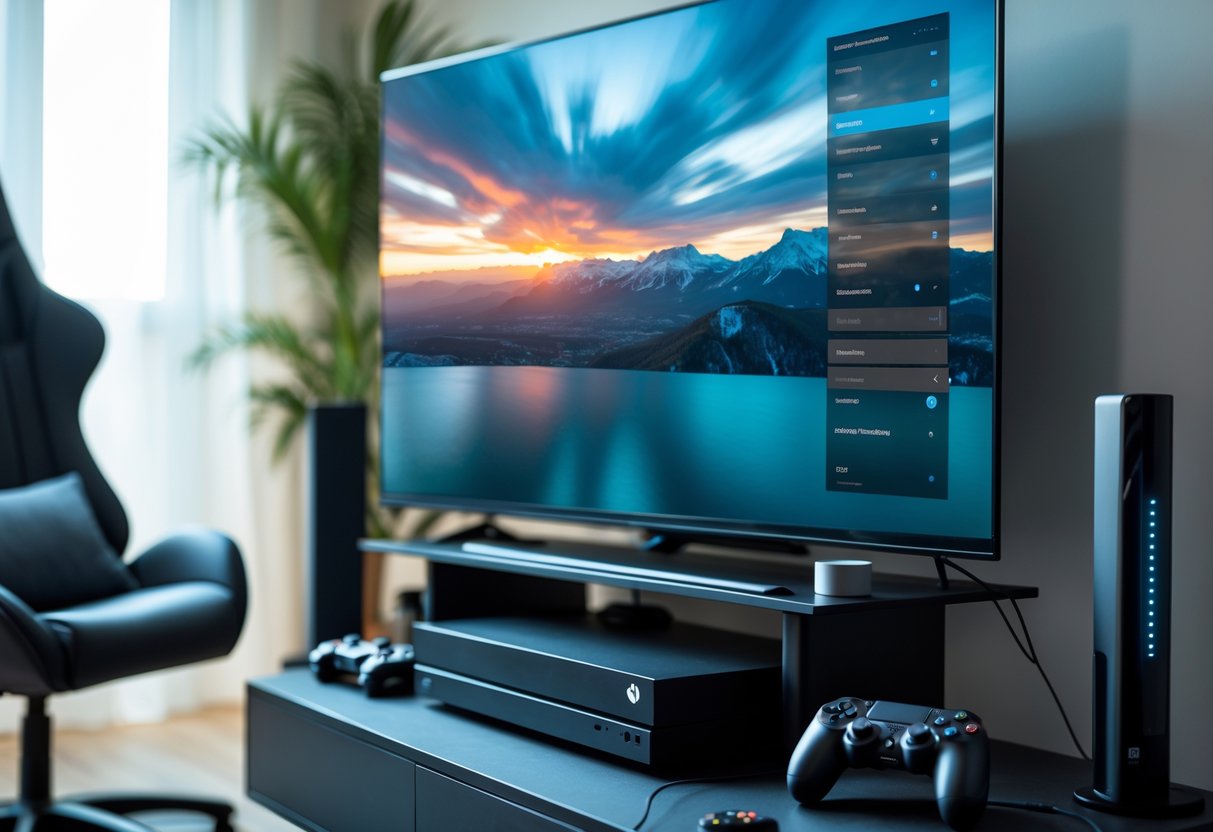
Your display and console both have built-in settings that directly affect input lag. Turning on the right modes, adjusting how your screen refreshes, and keeping your system updated can cut lag by several milliseconds.
Enabling Game Mode and Performance Modes
I always enable game mode on my TV first because it makes the biggest difference. Game mode turns off picture processing features like motion smoothing and noise reduction that add delay. Most modern TVs include this setting in the picture or display menu.
On PlayStation 5 and Xbox Series X, I switch to performance mode instead of quality mode. Performance mode prioritizes frame rate over visual details. This choice reduces processing time and helps the console respond faster to my inputs.
Some games let me choose between fidelity and performance in their graphics settings. I pick performance when I want low input lag. The graphics might look slightly less sharp, but my controller feels more responsive.
Adjusting Refresh Rates and Response Times
I check that my console outputs at the highest refresh rate my display supports. A 144Hz or higher refresh rate monitor provides smoother motion and reduced input lag compared to standard 60Hz displays.
Response time matters too. I look for displays with 5ms or lower response time. Gaming monitors typically have faster response times than TVs.
I also verify that my HDMI cable supports the bandwidth needed for higher refresh rates. Some TVs have specific HDMI ports optimized for gaming performance. I plug my console into those ports to get the best results.
Updating System Firmware
I keep my console firmware updated because manufacturers release patches that improve gaming performance. These updates often include fixes that reduce latency. I enable automatic updates so I don’t miss important improvements.
My TV firmware also needs regular updates. I check the manufacturer’s website or use the TV’s built-in update feature. Display updates can optimize game mode and add support for features like Variable Refresh Rate that help minimize lag.
Optimizing Graphics and In-Game Settings
Your console’s graphics settings directly affect how fast your game responds to controller inputs. I recommend adjusting visual features and performance options to prioritize speed over appearance.
Disabling V-Sync and Visual Effects
V-sync forces your console to match your display’s refresh rate, which adds extra input delay between your controller and what appears on screen. I turn off v-sync in every game’s graphics settings menu to eliminate this lag source. Most modern games let you disable it in the video or display options.
Visual effects like lens flares, depth of field, and screen space reflections require extra processing power. Each effect your console renders adds milliseconds to your input delay. I disable these effects through the graphics settings menu to reduce the workload on your system.
Common visual effects to disable:
- Lens flares
- Depth of field
- Screen space reflections
- Chromatic aberration
- Film grain
Your gaming performance improves when your console processes fewer visual elements per frame.
Lowering Resolution and Frame Rate Settings
I prioritize frame rate over resolution for better responsiveness. Setting your game to performance mode instead of quality mode reduces the load on your GPU, which helps minimize input lag.
Many console games offer performance modes that target 60 or 120 frames per second at lower resolutions. I choose 1080p at 120fps over 4K at 60fps when the option exists. Higher frame rates mean your console updates the screen more frequently, which reduces the time between button presses and on-screen actions.
Some games let you unlock frame rates entirely. I enable this option when available to let your console render as many frames as possible.
Turning Off Motion Blur and Ambient Occlusion
Motion blur smooths movement by blurring objects in motion, but this effect adds processing time and makes fast movements harder to track. I always disable motion blur in the graphics settings to improve both input delay and visual clarity during quick actions.
Ambient occlusion adds realistic shadows to scenes but requires significant processing power. This technique calculates how light interacts with objects in real-time. I turn off ambient occlusion to free up system resources for faster frame rendering. The visual difference is minimal, but the performance gain helps reduce lag.
Both settings appear in most games under advanced graphics options or visual quality menus.
Reducing Network Latency for Online Gaming
A wired ethernet connection delivers the most stable performance for online gaming, while proper router settings and traffic management can cut your ping significantly. These network optimizations work together to create a smoother gaming experience with less delay.
Using Wired Ethernet Connections
I always recommend switching from Wi-Fi to a wired connection when playing competitive games. An ethernet cable provides a direct link between your console and router, eliminating the signal interference that wireless connections face.
Wi-Fi signals must travel through walls, furniture, and other obstacles that slow them down. They also compete with other wireless devices in your home for bandwidth. A wired ethernet connection avoids these issues completely.
The difference in network latency is measurable. Wi-Fi typically adds 5-30 milliseconds of delay compared to ethernet. This might seem small, but in fast-paced games, those milliseconds matter.
I use a Cat6 or Cat7 ethernet cable for the best results. These cables support higher speeds and reduce interference better than older Cat5 cables. The cable should run directly from your console to your router without unnecessary length, though a 10-foot cable works fine for most setups.
Optimizing Home Network for Lower Ping
I reduce my ping by adjusting router settings that affect gaming performance. First, I enable Quality of Service (QoS) in my router’s admin panel to give my console priority over other devices. This setting ensures gaming traffic gets processed first.
I also change the DNS servers from my internet provider’s default to faster options. Google DNS (8.8.8.8 and 8.8.4.4) or Cloudflare DNS (1.1.1.1) often provide quicker response times. I test both to see which performs better for my location.
Router placement affects signal quality even for wired connections. I keep my router in a central, well-ventilated area away from other electronics that generate interference. Heat can slow down router performance, so proper airflow helps maintain consistent speeds.
I restart my router weekly to clear its memory and refresh connections. This simple step prevents performance degradation over time.
Prioritizing Network Traffic
I set up traffic prioritization to ensure my console gets maximum bandwidth during gaming sessions. Most modern routers include gaming modes or device prioritization features in their settings menu.
I access my router’s configuration page by typing its IP address (usually 192.168.1.1 or 192.168.0.1) into a web browser. In the QoS section, I assign my console’s MAC address the highest priority level. This tells the router to handle gaming data before streaming videos or file downloads.
I also limit bandwidth-heavy activities while gaming. Background downloads, 4K video streaming, and cloud backups can spike network latency even with QoS enabled. I schedule these tasks for times when I’m not playing.
Port forwarding improves connection quality for specific games. I look up the required ports for my game in its support documentation, then forward those ports to my console’s IP address through the router settings. This creates a more direct path for game traffic and can lower your ping in competitive online games.
Frequently Asked Questions
Gamers often struggle with specific technical questions about reducing lag on their systems. The answers involve adjusting display settings, using wired connections, and optimizing console configurations for each platform.
What are the best practices for minimizing input lag on the PlayStation 5?
I recommend enabling Performance Mode in your PS5 games instead of Quality Mode. Performance Mode prioritizes frame rate over visual fidelity, which reduces the time between your input and the on-screen action.
Connect your PS5 directly to your TV or monitor using a high-quality HDMI 2.1 cable. This ensures the fastest signal transmission possible.
I always suggest using a wired controller connection when playing competitive games. While the PS5’s DualSense offers excellent wireless performance, a USB-C cable eliminates any potential wireless interference.
Make sure your PS5 system software stays updated. Sony regularly releases updates that can improve system performance and reduce latency.
How can input lag be reduced when gaming on the Xbox One?
I start by adjusting the console latency setting on Xbox One through Settings > Display & sound > Video output > Console latency. This built-in feature helps optimize input delay for your specific TV and game.
Use a wired Ethernet connection instead of Wi-Fi for online gaming. A wired connection provides more stable data transmission and lower ping times.
I disable V-Sync in game settings when possible. While V-Sync prevents screen tearing, it can introduce noticeable input delay.
What steps can I take to decrease controller lag on the PS5?
I connect my DualSense controller with a USB-C cable during competitive gaming sessions. This removes any wireless latency completely.
Update your controller firmware through the PS5 settings menu. Sony releases firmware updates that can improve controller responsiveness.
I reduce interference by keeping other wireless devices away from the console and controller. Bluetooth devices, Wi-Fi routers, and smartphones can cause signal disruption.
Turn off controller features you don’t need, like adaptive triggers or haptic feedback, in games where milliseconds matter. These features require additional processing time.
In what ways can input lag on the Xbox Series X be fixed?
I enable Variable Refresh Rate (VRR) when using a compatible display. VRR synchronizes the display’s refresh rate with the console’s frame rate, reducing both screen tearing and input delay.
Set your Xbox Series X to 120Hz output if your display supports it. The higher refresh rate provides more frequent screen updates, which shortens the delay between input and visual feedback.
I prioritize frame rate in graphics settings within individual games. The Series X often offers quality and performance modes, and performance mode delivers lower input lag.
Keep the console’s ventilation clear and ensure proper airflow. Thermal throttling can affect processing speed and increase latency.
What measures can reduce input lag for console gaming on a non-game mode TV?
I enable Game Mode through your TV’s picture settings menu. This setting disables image processing features like motion smoothing and noise reduction that add significant delay.
Turn off any post-processing effects manually if Game Mode isn’t available. Features like dynamic contrast, edge enhancement, and color enhancement all increase input lag.
I reduce the TV’s picture quality settings to standard or basic presets. Advanced picture modes apply multiple layers of processing that delay the signal.
Connect your console to a specific HDMI port labeled for gaming if your TV has one. Some TVs designate certain ports with lower latency processing.
What causes excessive input delay on consoles and how can it be addressed?
Display processing represents the largest source of input lag. TVs apply various image enhancements that can add 50-100 milliseconds of delay before showing the image.
I address this by enabling Game Mode and using a gaming monitor with fast response times instead of a TV when possible. Gaming monitors typically have 1-5ms response times compared to 15-30ms for TVs.
Wireless interference affects controller responsiveness. I keep the console in an open area and minimize nearby wireless devices.
Outdated system software can contribute to lag issues. Keeping your console updated ensures you have the latest performance optimizations.
Network latency impacts online gaming specifically. I use a wired Ethernet connection and upgrade my internet plan if I experience high ping times during multiplayer sessions.